










All about Speaking of the News and Media Releases
Simply put, Speaking of the News is a newswire service distributing bulletins about activities in the speaking industry, and Pro Speaker You enables its members to post Media Releases to Speaking of the News.
How often you can post News Releases depends on your membership level.
When you join Pro Speaker You…
- As a Rising Star member, you do not have the ability to post News Releases to Speaking of the News.
- As a Pro member of Pro Speaker You, you can post one News Release every week.
- As a Rock Star member of Pro Speaker You, you can post one News Release every day.
How to Create Your News Release
Creating your News Release is easy. Just go to the Center Stage page (logging in first, if necessary) and click on the Manage Your News Releases link.
You will then be shown the list of all of the News Releases (if any) that you’ve already created.
To create a new News Release, simply click the Add News Release button at the top of the list. You will then be shown the WordPress editing page.
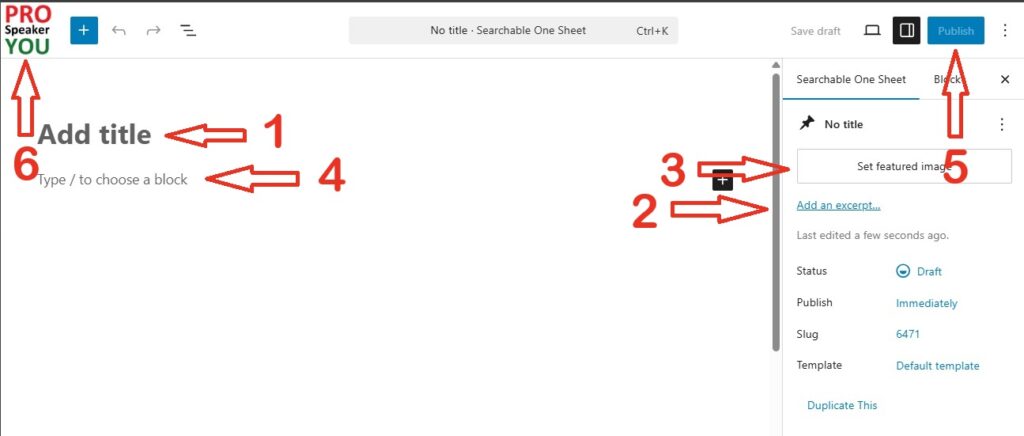
(Note: the following steps do not need to be done in this order, but you need to do them all to get your News Release to look right. The numbers are simply a convenience.)
[1]
Enter the headline of your News Release as the “Title”.
[2]
Next, look on the righthand side for the “Settings” area. (If the “Settings” area isn’t visible, just click the settings button at the top-right of the page.) Write a compelling summary of your news announcement in the “Excerpt” field. This is what editors and readers will see when they search Speaking of the News for news releases.
[3]
In the same Settings area, enter your featured image. This is the image seen on searches, so you want it to be eye-catching. You can an image already in your personal library, or you can upload an image to your library. Note: squarish images display best. Also note: although we attempt to optimize images for you, uploading overly large images will slow down the display of your News Release. Try to keep your images relatively small.
[4]
Next, create your full News Release in the space below “Title”. (Note: both your summary and your featured image are automatically displayed on the News Release, so there’s no need to repeat them.)
WordPress is one of the most powerful, popular, and customizable platforms in the world, so there’s a chance that you’re already familiar with it. If you need help using the block editor, you might try WordPress’ tutorial at https://wordpress.org/documentation/article/wordpress-block-editor/ .
[5]
When you’re finished with your news release, be sure to publish it.
[6]
After you’ve published your News Release, click the Pro Speaker You button in the upper left corner of this page to return to the list of all your News Releases.
How to Edit a News Release
If you need to change your news release after it’s been published, editing an existing News Release is straightforward. Simply go to the Center Stage, and then go to Manage Your News Releases (just like you did to create the News Release). But this time, click “edit” on the particular News Release that you want to edit.
This will take you to the WordPress editing screen, where you can perform whatever edits you want.
Note: unless you’re correcting a minor grammar or spelling error, it’s probably better to issue a new News Release rather than editing the existing News Release. The new release can detail the changes that you’re making to your announcement.
When you’re done, be sure to SAVE your edited News Release. And then click the Pro Speaker You button in the upper left corner of the page to return to the list of all your News Releases.
Deleting a News Release
It’s unusual to remove a News Release once it’s published, but if you want to get rid of a news release, deleting a News Release is easy. Just go to Center Stage and then Manage Your News Releases. On the News Release that you want to get rid of, just click “delete”.
Deleting a News Release is easy, but do you really want to do it? People who have already read your release can’t “unread” it, so all you’re doing is stopping new people from seeing it. So you might want to consider issuing a new News Release instead of deleting the old one.
If you do decide to delete a News Release, please note that it isn’t gone permanently – it’s been moved to the trash. This means that you can recover your News Release if you change your mind about getting rid of it. To permanently remove a trashed News Release, simply go to the list of your untrashed News Releases and click on the “Trash” link. This will now display your trashed News Releases (if any); restore or delete (permanently) them as you wish.
Also please note that deleting a News Release does not reset when you can publish your next News Release. If your membership level allows you to publish a News Release weekly and you publish a News Release and then immediately delete it, you still have to wait a week before you can publish a new News Release.