











Finders Speakers and Searchable One Sheets
Simply put, Finders Speakers is a directory of speakers. Finders Speakers not only contains descriptions of individual speakers, but also details the different resources and services that they offer.
Searchable One Sheets are the data from which Finders Speakers is built from. Each One Sheet can describe an individual speaker, a particular program offered by a speaker, or a resource or service that the particular speaker offers.
Finders Speakers One Sheets are different from traditional directory entries in a number of ways:
- Traditional directory entries usually have a set length. They have a set size, or a maximum number of words that you can write, and you’re generally limited to a single picture that’s positioned on the same place in every entry.
But a Finders Speakers One Sheet has no set size. You can make your description as long (or as short) as you want. You can have as many photos as you want, and you can position them anywhere on the page that you want. You can include a video… or 2 or three videos if you like.
In short, instead of forcing speakers to describe themselves in a predefined, cookie-cutter format, with Finders Speaker One Sheets, you can make your directory entries as unique as you are! - But there are other differences! For example, you can include a way of prospective clients contacting you… without revealing your email address or phone number.
- You can also, depending on your membership level (see below), have multiple One Sheets. This is handy if you want to have separate One Sheets for your keynotes and your training programs, or your speaking programs and your coaching services.
- One Sheets also have a “speaking from” location tied to them, so that event planners who are searching for local speakers can easily find you!
How Many Different One-Sheets Can I Have?
As just mentioned, how many One Sheets you have depends on your membership level.
If you join Pro Speaker You as a Rising Star, you have a single One Sheet to promote yourself with.
If you join Pro Speaker You as a Pro member, you have 3 One Sheets available to you, so for example you could have one One Sheet for your keynote, another one for your training program, and a third for your coaching service.
Or if you join as a Rock Star member of Pro Speaker You, you have a whopping 7 One Sheets available to you.
Creating Your One Sheet
Creating your One Sheet is straightforward. Starting at Center Stage, just select the “Manage Your One Sheets” option. You’ll be presented with a list of all your One Sheets that already exist (if any).
Click the “Add New One Sheet” button at the top of the list, and you’ll be taken to the One Sheet editing page, which will look something like this:
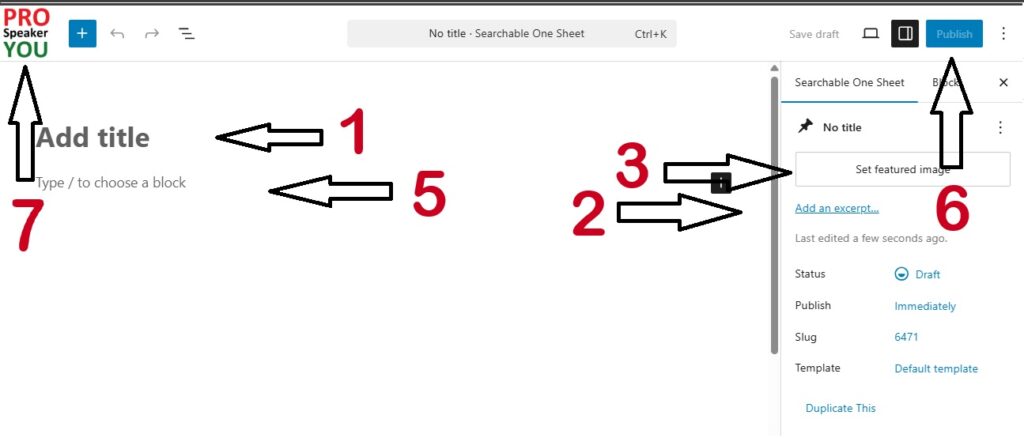
Then perform the following steps. (Note: the steps do not have to be performed in any particular order. They are numbered purely for convenience.)
[1]
First, enter your Title where “Add Title” is displayed. For One Sheets, the title is not displayed on either your One Sheet or the search results. It’s only displayed on the browser tab when someone looks at this particular One Sheet. So you can use it to distinguish between your different One Sheets (if your membership level allows you to have multiple One Sheets), or a prospective client can use it to distinguish between different One Sheets when they’re looking at multiple One Sheets in different browser tabs. So the Title will typically be your name, the title of your program, or something like that.
[2]
Next, look on the righthand side for the “Settings” area. (If the “Settings” area isn’t visible, just click the settings button at the top-right of the page.) Write a brief but compelling summary of your One Sheet in the “Excerpt” field. This summary is what people will see when they search, so give them a reason to “click through” and look at your full One Sheet.
[3]
In the same Settings area, enter your “featured image”. (This is the image seen on searches, so you want it to be eye-catching.) You can use images already in your personal library, or you can upload images to your library. Note: squarish images display best. Also note: although we attempt to optimize images for you, uploading overly large images will slow down the display of your One Sheet. Try to keep your images relatively small.
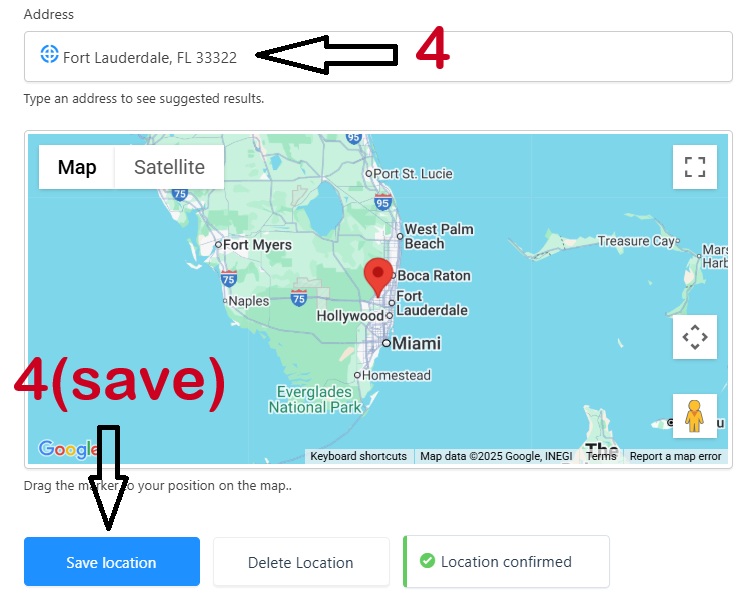
[4]
Then, at the bottom of the page, set your “travel from” location in the “location” field, and then be sure to “save location”. (Saving your location is separate from saving your One Sheet, which you’ll do in a moment.) Your “travel from” location is probably your home. You don’t have to reveal anything private or specific — just the postal code of your general area is probably sufficient.
[5]
Now you get to the really creative part – creating your actual One Sheet! Create your full One Sheet in the space below “Title” using the WordPress block editor.
WordPress is one of the most powerful, popular, and customizable platforms in the world, so there’s a chance that you’re already familiar with it. If you need help using the block editor, you might try WordPress’ tutorial at https://wordpress.org/documentation/article/wordpress-block-editor/ .
[6]
Finally, be sure to publish your new One Sheet. And you’re done!
[7]
When you have finished creating this One Sheet, click the Pro Speaker You button in the upper lefthand corner of this page to return to the list of all your One Sheets.
How to Edit a One Sheet
Editing an existing One Sheet is straightforward. Simply go to the Center Stage, and then go to Manage Your One Sheets (just like you did to create the One Sheet). But this time, click “edit” on the One Sheet that you want to edit.
This will take you to the WordPress editing screen, where you can perform whatever edits you want.
When you’re done, be sure to SAVE your edited One Sheet. And then click the Pro Speaker You button in the upper lefthand corner of the page to return to the list of all your One Sheets.
Deleting One Sheets
Deleting a One Sheet is easy. Just go to Center Stage and then Manage Your One Sheets. On the One Sheet that you want to get rid of, just click “delete”.
Deleting a One Sheet is easy, but do you really want to do it? You’ll lose any SEO “links” that your page might have accumulated, so you might want to consider replacing everything in your unwanted One Sheet instead of deleting it. Just a thought – your call.
If you do decide to delete a One Sheet, please note that it isn’t gone permanently – it’s been moved to the trash. This has a couple of consequences – one, you can recover your One Sheet if you change your mind about getting rid of it. But more importantly, the maximum number of One Sheets that your membership level allows you is based on the sum of your all your One Sheets including the “trashed” ones.
To restore or permanently remove a trashed One Sheet, simply go to the list of your untrashed One Sheets and click on the “Trash” link. This will now display your trashed One Sheets (if any); restore or delete (permanently) them as you wish.